Exploring the Data Forensics Interface
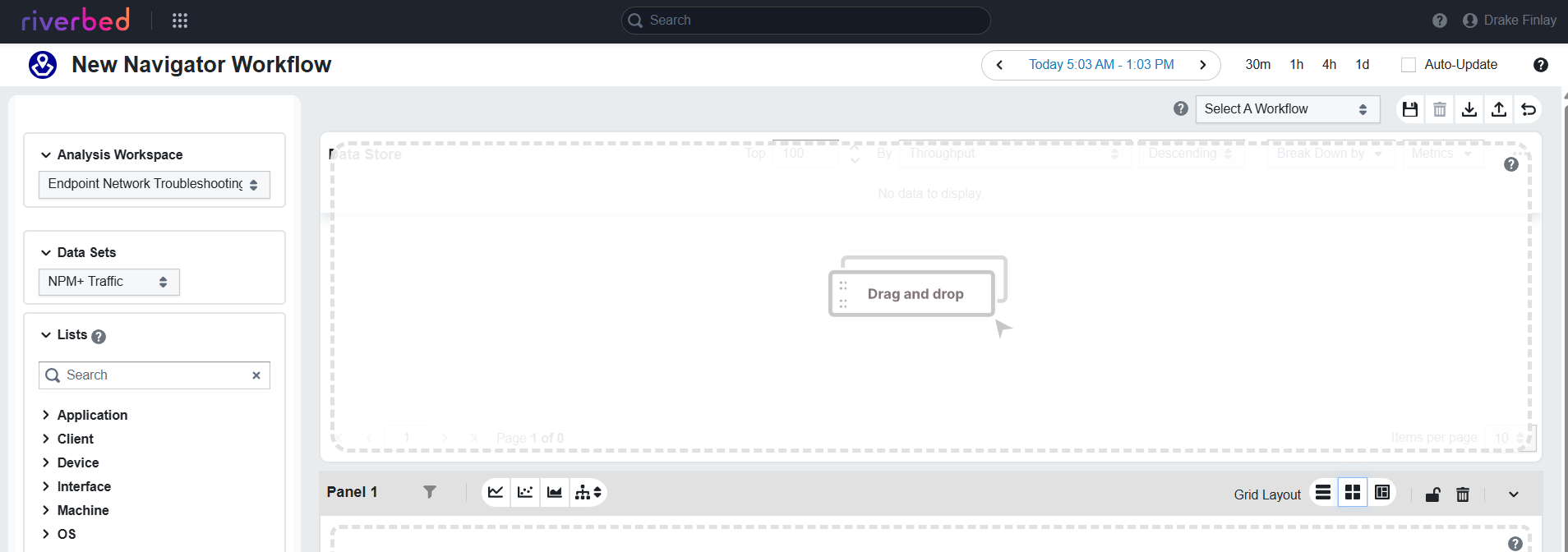
Use the Data Forensics interface to build unscripted, panel-based investigations using live telemetry. You start from a main table, add panels of charts and tables below it, and drill down by selecting rows and adding visualizations. Analysis can span all Riverbed data sources, not only IQ Ops data.
The Data Forensics interface consists of the following components:
-
Data Forensics Sidebar: Source of group bys
 In Workspaces Data Forensics, a dimension (e.g. application, host, service, client IP) that you choose from the sidebar to load data into the main table. Data is aggregated or broken down by that dimension. The sidebar lists available group bys for the selected analysis workspace. (e.g. application, host, service). You drag or double-click a group by into the main table to load data for that dimension.
 -
Main Table Pane: The top table that displays data for the selected group by. Row selections in the main table filter all panels below it.
-
Panels: Areas below the main table where you add visualizations (time series, correlation, drilldown tables, and others) via the panel toolbar. Each panel can contain multiple widgets that respond to selections above.
-
Filter Bar: Optional bar at the top of the main table to apply filters (e.g. by application, location) so the table and all panels show only matching data.
-
Top By: Controls how many rows or series the main table and related widgets show (e.g. top five applications).
-
Main Table Options: Additional options for the main table (e.g. show filters, break down by).
Panel 1 (the first panel below the main table) is your entry point for adding visualizations. You choose a group by to populate the main table, select a row to focus on, then add charts or drilldown tables in the panel. Each subsequent panel refines the investigation based on selections above. For how filters and selections flow from top to bottom, see Filtering and Interactions in Data Forensics. For a step-by-step example, see Building New Workflows in Workspaces.