Moving Around Riverbed IQ Ops
The left menu is where you start in Riverbed IQ Ops. Everything you do in the product starts from this menu: viewing incidents A collection of one or more related triggers. Relationships that cause triggers to be combined into incidents include application, location, operating system, or a trigger by itself., opening apps and workspaces, managing automations Automated procedures that are executed as the result of a trigger. Automations consist of a single entry point and a sequence of connected nodes that define the processing logic. and runbooks An automated workflow that executes a series of steps or tasks in response to a triggered event, such as the detection of anomalous behavior generating an incident, a lifecycle event, or a manually executed runbook., and reaching administration. This topic explains how to move around the left menu so you can find the right area for your task. Use it when you are new to the menu or when you need a quick map of what each part of the menu does.
How you get around
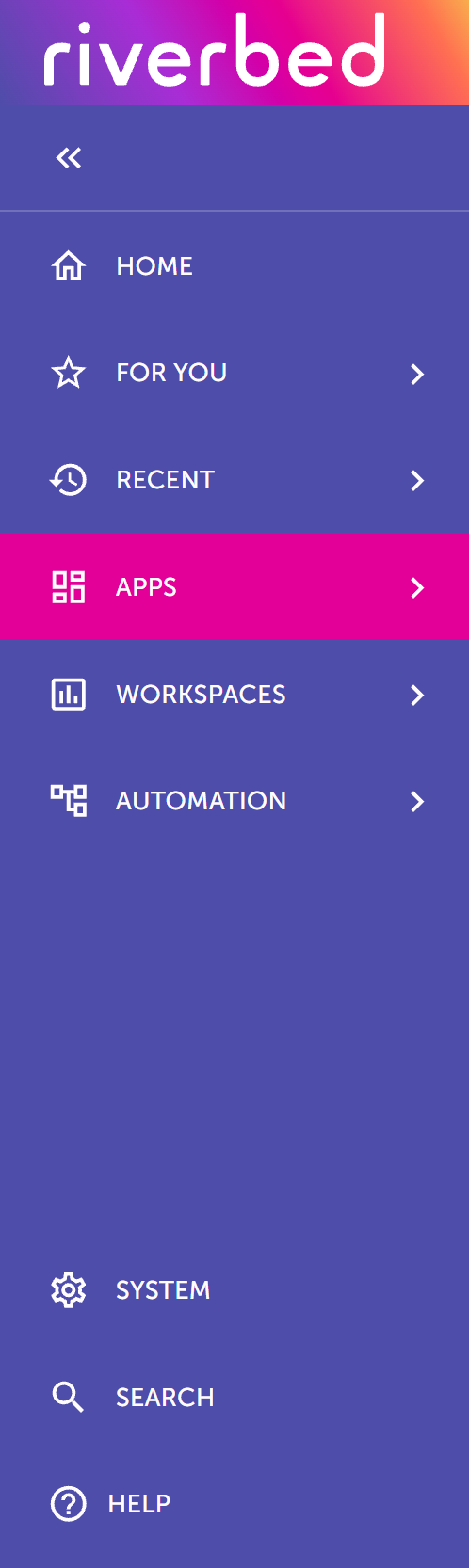
The left menu stays on the left side of every page, under the Riverbed Technology logo. Select a menu entry to open that area. An entry with an arrow opens a secondary menu.
The menu in the following image shows the areas most accounts include. Apps is selected. Q, Observations, and Profile appear when your account includes them. Profile sits at the bottom of the menu, after Help.
-
Home.
-
For You.
-
Recent.
-
Apps.
-
Workspaces.
-
Automation.
-
System.
-
Search.
-
Help.
The exact items you see depend on your permissions and how your tenant is configured.
Home
Home is the default page when you open Riverbed IQ Ops. You can also open it from the left menu. Home is a workspace, and you can replace the built-in layout with another dashboard workspace. The Home menu item appears when your account can open workspaces. Use Home as your daily starting point. See Home.
For You
For You lists bookmarks you add yourself. Those bookmarks can include pages, agents, skills, runbooks, and copies of apps, workspaces, and System cards you star. An empty For You menu shows No bookmarks yet. Starter apps for your areas of responsibility are listed under Apps.
Recent
Recent lists up to 10 pages and destinations you opened recently and can still open. The list updates as you work, so you can return to a page without searching for it again.
Q
Q opens Chat with Riverbed Q. Q appears when Chat is enabled for your account. On pages that support it, Q can also stay open beside your work. See Riverbed IQ Ops Chat and Embedded AI Assistant.
Apps
Open Apps, then Apps Library, to find product modules. Apps Library is a searchable hub. Type in Search apps... to filter the cards, and switch between card view and table view. Star a card to bookmark that app under Apps and For You. When no apps are available, the page shows No apps are available for your account.
Cards appear only when your account can open that destination. Common cards include:
-
AppResponse.
-
Aternity Classic. This card opens the classic Aternity experience for your tenant in a new browser tab.
-
Core Assurance. The card is marked Beta. If you have not opted in, the card opens the opt-in page.
-
Data Forensics. This card opens Data Forensics workflows for deep-dive analysis of network data. See Understanding Data Forensics and the Workspaces Library.
-
Device Inventory, Sentiment Surveys, Smart Refresh, Validate Change, and Unified Agent. These cards open Aternity experiences.
-
Incidents. This card opens the Incidents page, where you search and investigate incidents. See Incidents Page.
-
NetIM+. This card opens the CloudIM landing page. From there, you connect AWS
Amazon Web Services. A cloud computing platform that provides infrastructure services, including data storage and AI inference services used by . or Azure Microsoft Azure. A cloud computing platform that provides infrastructure services, including blob storage for PCAP files and AI inference services used by . cloud data sources and monitor your cloud infrastructure. See CloudIM Landing Page and Configuring CloudIM. -
Packet Capture Module (PCM
. A module that performs operations related to packet capture, allowing you to capture network packets and store them as PCAP files for analysis.). The card is present when Packet Capture Module is enabled for the tenant and your account can view devices, captures, commands, and harvests. A missing card means the feature is off for the tenant or your roles do not include those views. See Packet Capture Module Overview.
Remediations is listed under Automation and appears when the unified agent experience is enabled for the tenant.
After you save Your Areas of Responsibility on the User Profile page, Riverbed IQ Ops can add a starter set of apps under Apps. An app is included only when you can open it. If you select more than one area, you get the combined set, and a shared app appears once.
-
End User Compute: Device Inventory, Sentiment Surveys, Smart Refresh, Validate Change, and Aternity Classic.
-
Application Owner: Aternity Classic.
-
Network Operations: Data Forensics.
The first time a starter set is applied, Riverbed IQ Ops adds those apps and keeps apps you already bookmarked under Apps. If you later change your areas of responsibility, Riverbed IQ Ops replaces the Apps bookmarks with the starter set for the new areas. Bookmarks under For You and Workspaces stay in place. If none of your areas has a starter set, the Apps bookmarks are cleared. See Personalization and User Profile.
Observations
Observations is your view into autonomous detections and related insight in the environment. The menu item appears when Observations is enabled for your account.
Workspaces
Open Workspaces, then Workspace Library, to browse workspaces. Search the library by name, description, or tags. Star a workspace in the library, or star an open workspace, to pin it under Workspaces and For You. Pinned workspaces stay on the Workspaces menu so you can open them without returning to the library. See Riverbed Workspaces.
Automation
Open Automation for runbook authoring, agent catalogs, and schedules. Automation appears when your account can open at least one item in the list. Items appear in this order:
-
Remediations: Aternity remediations, when the unified agent experience is enabled.
-
AI Agents: Agent Catalog for catalog agents, when your account can read agents. See Agents.
-
AI Agent Skills: Opens the Skill Catalog for skills and commands, when your account can read skills. See Skill Catalog.
-
Runbooks: Browse and manage runbooks, when your account can read runbooks.
-
Automation Mapping: Configure which runbook runs for a trigger, when your account can read automation rules.
-
Runbook Analyses: Review runbook output analyses, when your account can read runbook output.
-
Subflows: Manage reusable subflows, when your account can read runbooks and subflows are enabled.
-
Scheduling: Schedule on-demand runbooks, when your account can read scheduled runbooks.
System
System is the gear icon near the bottom of the left menu. It opens a searchable hub for administration. The page opens in card view. Switch to table view when you want a compact list. Type in Search system settings... to filter the cards. Star a card to add that destination to For You. Integrations are one of these cards. When no cards are available, the page shows No system settings are available for your account. See Integrations Library Page.
System cards appear only when your account can open them. Common cards include AI Settings, Analytics, API Access, Audit Log, Credit Usage, Custom Properties, Data Source Management, Explorer, Inactivity Logout, Integrations, Riverbed IQ Assist, Third-Party Profiles, and User Management.
Search
Search looks up incidents, related objects, runbooks, and product documentation in the Riverbed IQ Ops experiences available to your tenant. See Using Search.
Help
Help opens Documentation and Support. Each link opens in a new browser tab.
Profile
Profile is your avatar menu. It includes User Profile, Bookmarks Manager, Dark Mode or Light Mode, and Logout. See Personalization and User Profile.
Bookmarks
Star an item to pin it on the left menu. Where the bookmark appears depends on the item:
-
Apps: Under Apps and For You.
-
Workspaces: Under Workspaces and For You.
-
System cards, pages, agents, skills, and runbooks: Under For You.
Open Bookmarks Manager from Profile to add, rename, reorder, or delete bookmarks, and to group them in folders. You can save up to 50 bookmarks across For You, Apps, and Workspaces. Removing a star from a card or page removes every menu copy of that item. Deleting one copy in Bookmarks Manager leaves any other copy in place.
What you might not see
Each menu item and Aternity card stays hidden until the matching feature and roles are present. If an expected entry is missing, confirm your role assignments and tenant entitlements with an administrator. For role areas, see User Role Definitions and Orion RBAC.
-
Home and Workspaces require access to workspaces.
-
Q requires Chat access.
-
Observations requires access to observations.
-
AI Agents and AI Agent Skills require catalog read access.
-
Runbooks, Automation Mapping, Runbook Analyses, Subflows, and Scheduling each require the matching automation feature and read access. Scheduling stays beside Runbooks under Automation.
-
Remediations requires the unified agent experience.
-
Aternity Classic, Device Inventory, Sentiment Surveys, Smart Refresh, Validate Change, and Unified Agent are Apps Library cards for Aternity. Aternity Classic opens in a new browser tab.
-
Packet Capture Module requires the feature plus permission to view devices, captures, commands, and harvests.
-
Incidents, Data Forensics, NetIM+, and Core Assurance follow the access rules for those features. Core Assurance is marked Beta.
-
Each System card follows the same access rules as the administration page it opens.