Home
Home is the workspace Riverbed IQ Ops opens when you sign in. It is a Workspaces dashboard, so you can replace the built-in layout with any other dashboard workspace. Use Home as your daily starting point, then open Incidents, an app, or another workspace for the task you need to finish.
The Home menu item appears when your account can open workspaces. For the rest of the left menu, see Moving Around Riverbed IQ Ops.
Navigate to Home:
-
Click Home in the left menu.
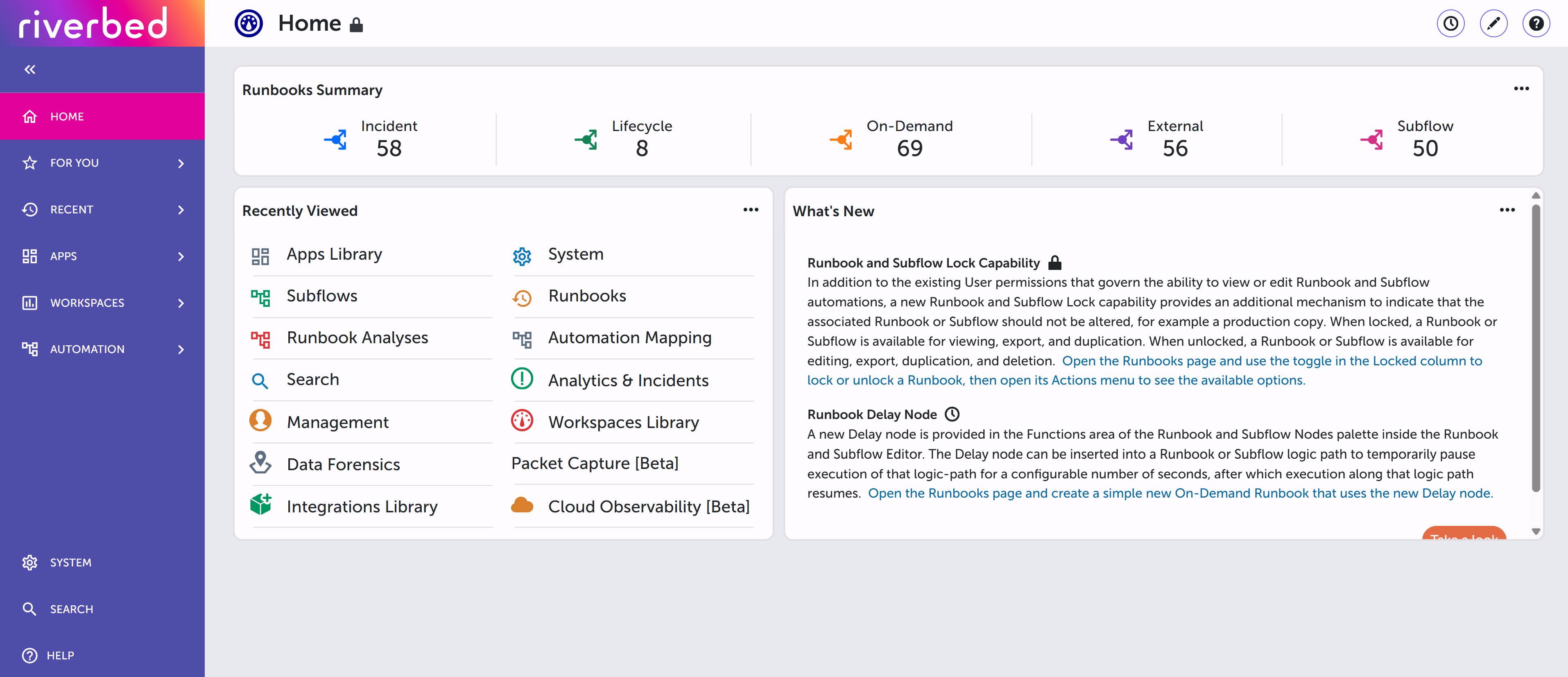
What the default Home workspace shows
Until you choose another workspace, Home uses the built-in Home workspace. That workspace includes these widgets:
-
What's New: Shows the latest What's New message for Riverbed Console. Open the message to read What's New In This Version.
-
Runbooks Summary: Shows a count for each runbook
 An automated workflow that executes a series of steps or tasks in response to a triggered event, such as the detection of anomalous behavior generating an incident, a lifecycle event, or a manually executed runbook. type available to your account, such as incident, lifecycle, on-demand, external, and subflow. Select a runbook type to open the matching runbook list. Select Subflow to open the subflow list.
 -
Recently Viewed: Lists pages you opened recently so you can return to them. When the list is empty, the widget shows You haven't visited other pages.
You can add, remove, and rearrange widgets by saving your own copy of a workspace. See List of Widgets and Customizing Preconfigured Workspaces.
Choose a different home screen
The current choice appears as Workspace Homepage on the User Profile page. You can change it from the Workspace Library or from the profile wizard.
To set a workspace from the Workspace Library:
Navigate to the Workspace Library page:
-
Click Workspaces in the left menu.
-
Click Workspace Library.
-
On the workspace card, open the ... menu.
-
Click Set as home screen.
Riverbed IQ Ops confirms the change with Workspace set as home screen. The next time you open Home, that workspace is what you see.
You can also choose a homepage while you complete your profile. On the User Profile page, click Tell us more about you and continue to Choose your workspace homepage. The field label is Workspace Homepage. The list placeholder is Choose a workspace (optional). If you describe your role as specialized, Riverbed IQ Ops selects a homepage workspace for that area of responsibility. You can replace that workspace later from the Workspace Library. See Personalization and User Profile and Getting Started with Workspaces.