Personalization and User Profile
Riverbed IQ Ops can tailor recommendations, Chat behavior, and what you see in the Observation Feed widget based on a profile you build on the User Profile page. Personalization is optional, but completing your profile helps the platform prioritize what matters to your role and scope. You can also switch the UI between light and dark mode from Profile.
For how personalization fits with Chat, Skills, Agents, and the observation feed, see AI-Assisted Operations in Riverbed IQ Ops. For the menu path to Profile, see Moving Around Riverbed IQ Ops.
Onboarding wizard
The first time you sign in without a saved profile, Riverbed IQ Ops opens the Tell us more about you wizard automatically. The wizard walks you through questions about your persona, personality, areas of interest, technical depth, and what you care about in your environment.
You can finish the wizard, use Skip for now, or close it. Skipping or closing during onboarding records that you chose not to complete setup yet. You can return anytime from the User Profile page.
Open the User Profile page
To open the User Profile page:
-
Click Profile in the left menu.
-
Click User Profile.
The User Profile page shows your account details, assigned roles, and a profile summary card. Click Tell us more about you on that card to open the wizard and update your answers.
What the profile captures
The profile wizard collects preferences that describe how you work and what you want prioritized:
-
Persona: The role-oriented profile step that frames how the platform should prioritize guidance for you.
-
Personality: Preferences for how generated guidance should sound and engage with you.
-
Areas of Interest: The operational areas you care about most (for example, End User Compute, Application Owner, or Network Operations). The profile summary labels this section Your Areas of Responsibility.
-
Tags of interest: Topic tags used to emphasize relevant dashboards and alerts (for example, DEX, NPM, or Application Health).
-
Technicality level: How deep and technical generated guidance should be (Basic Technical, Intermediate Technical, or Advanced Technical).
-
Applications of interest and locations of interest: Applications and sites in your operational scope. When your tenant exposes application and location metadata, the wizard lists tenant-specific names. Otherwise, the wizard shows a default list.
-
Workspace homepage: The workspace you see first when you open the application. See Home.
Your answers are saved to your user preferences. You can change them later from the User Profile page.
Your areas of responsibility also choose a starter set of apps on the Apps menu. End User Compute, Application Owner, and Network Operations each add a different set. Changing those areas later replaces the bookmarks under Apps. Bookmarks under For You and Workspaces stay in place. For the starter apps and the rest of the menu, see Moving Around Riverbed IQ Ops.
The profile summary on the User Profile page shows Your Areas of Responsibility, technicality level, applications of interest, locations of interest, and workspace homepage. Tags of interest are saved with your profile and used for personalization even though they are not listed on the summary card.
How personalization applies to observations
Your profile helps the platform decide which observations are most relevant to you. When you configure an Observation Feed widget, you can enable Filter based on persona on the Filters step of the Configure Feed Widget dialog.
When that filter is enabled, the widget shows only observations that match your configured profile (areas of interest, tags, applications, locations, and related profile fields). Turn the filter off to see the full feed regardless of profile. Widget-level filters for severity, lifecycle state, tags, applications, and locations still apply on top of the persona filter when it is enabled.
Personalization also informs Chat and workspace skills behavior by supplying profile context to the assistant services behind Riverbed Q (Q) and embedded Chat surfaces. See Riverbed IQ Ops Chat.
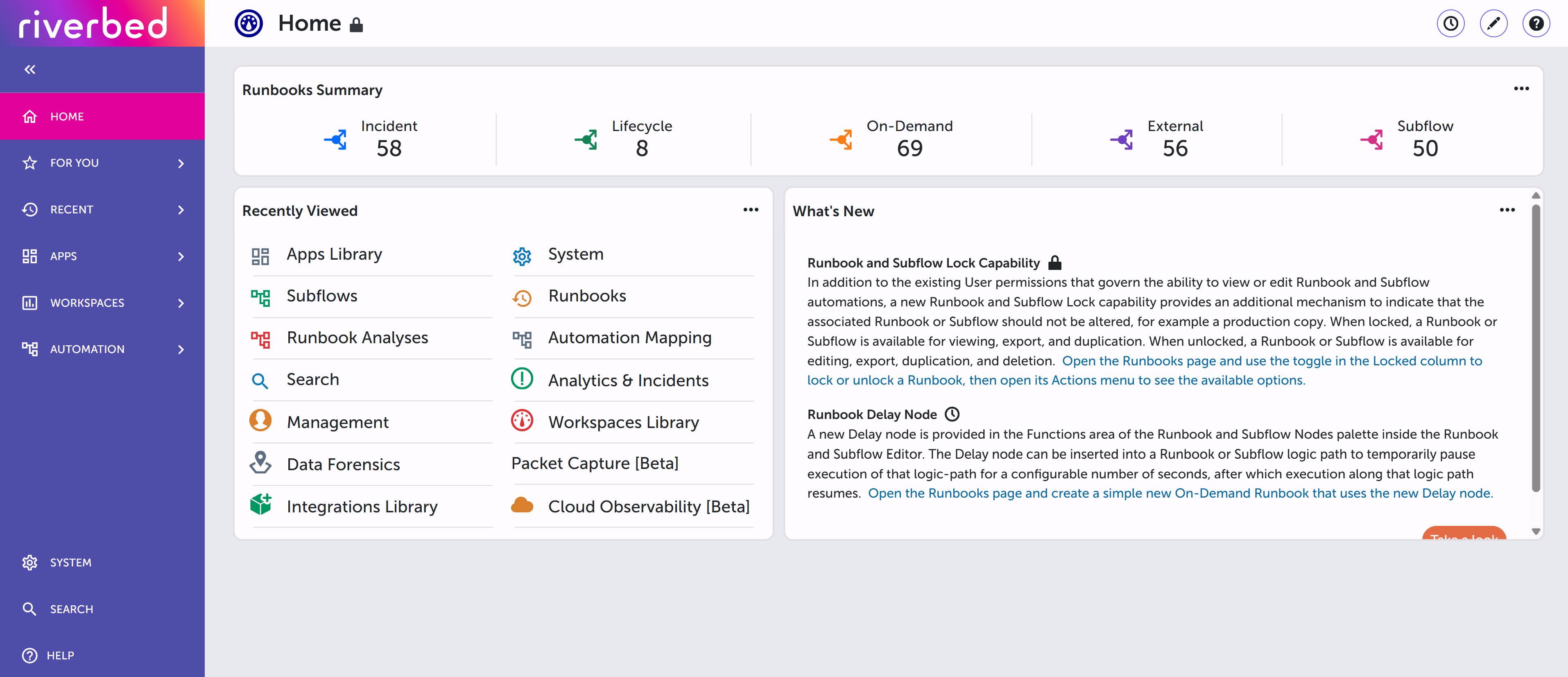
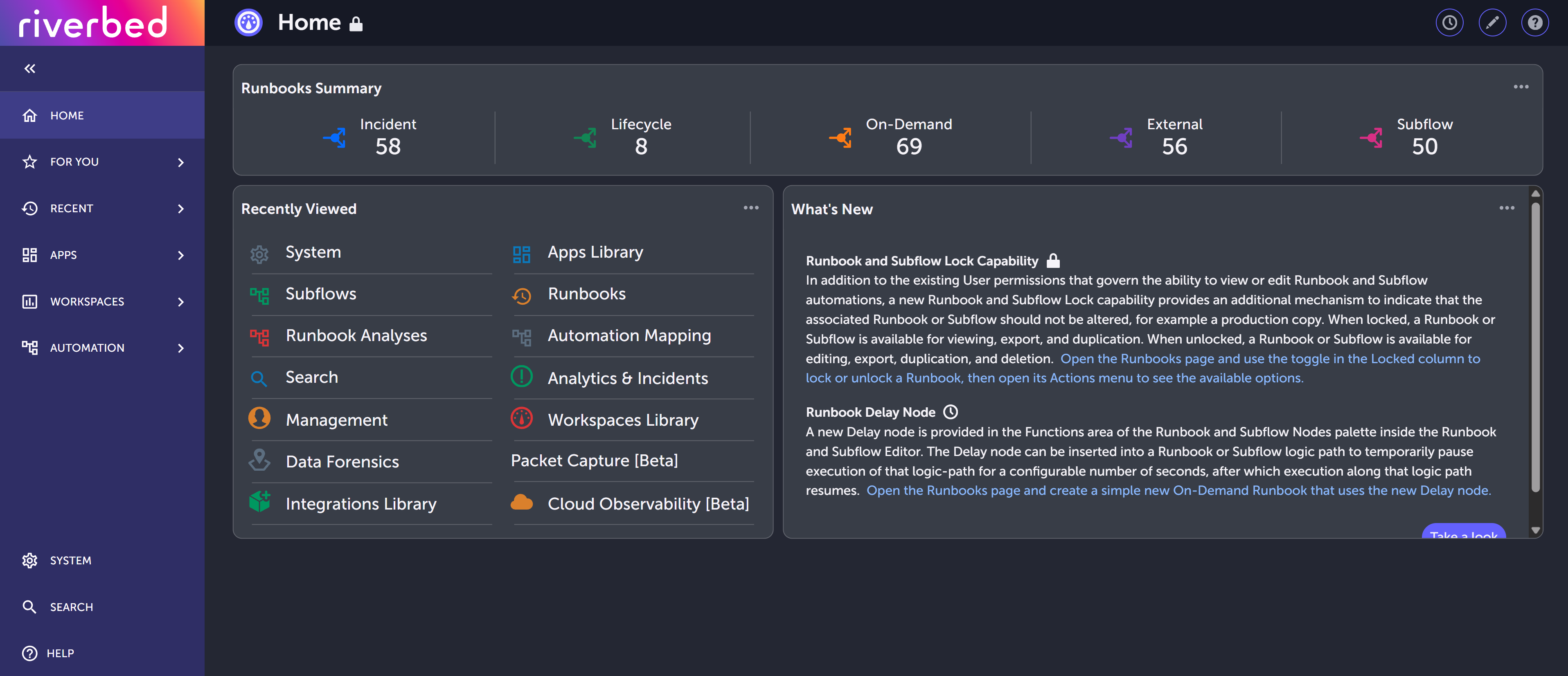
Light and dark mode
You can display Riverbed IQ Ops in light mode or dark mode. The choice is saved as a user preference for your account.
Open Profile (your avatar menu), then choose Dark Mode or Light Mode. The menu shows the mode you can switch to from your current selection. Light mode is the default.
Use the tabs below to compare the same Home page in each mode.
AI-Generation disclaimer
When using Generative AI technologies to create and generate content, the target audience must be aware that the content is AI generated. We recommend adding a disclaimer to the output of the content generated using the GenAI node. For example, appending "AI-Generated content".