Packet Capture Configuration Settings
Use the Packet Capture Settings to configure your Packet Capture Module environment.
There are three groups of settings:
-
Capture Profiles
-
Storage Profiles
-
Global Settings
Capture Profiles
A capture profile A configuration template that defines packet capture parameters. defines the parameters used when starting a capture job Writes network packets to local disk for continuous or on-demand captures.. It includes:
-
Packet filtering (optional Berkeley Packet Filter (BPF
Berkeley Packet Filter. A syntax for selecting which network packets are captured or harvested based on protocol, address, port, and other packet attributes.)) -
Capture limits (buffer size, maximum time, maximum packets)
-
Capture mode (continuous or on-demand)
-
Auto-start behavior for newly deployed devices
When you start a capture job, you select a capture profile. The job uses that profile's settings to determine what packets are captured and how the capture behaves.
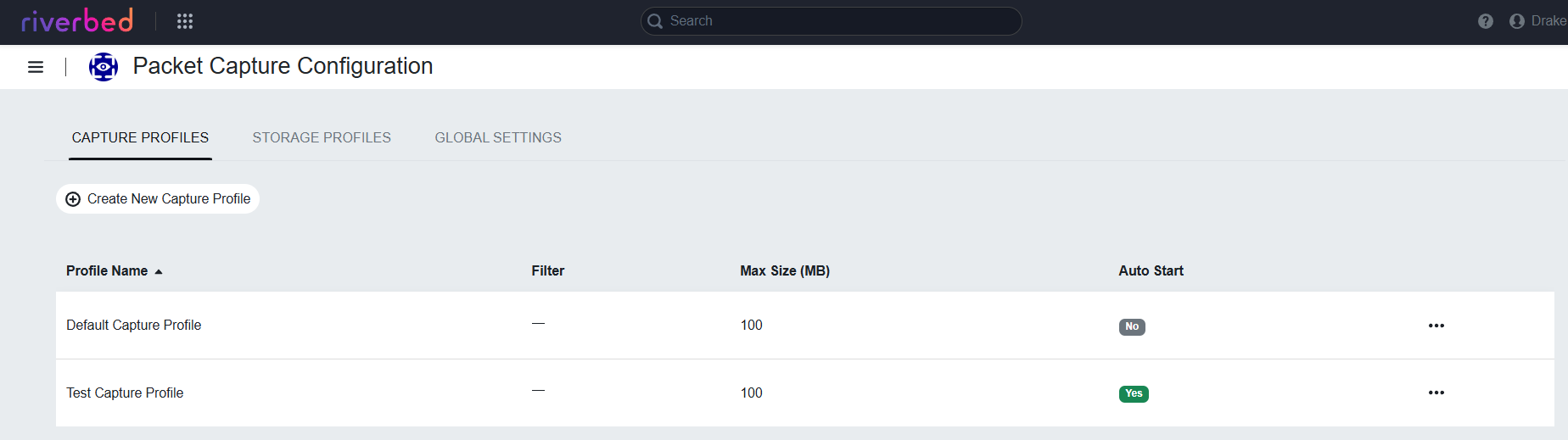
You can edit and delete created profiles by clicking [...].
Click Create New Capture Profile to open the Create Capture Profile pop-up. This pop-up has a few sections of configurable settings:
Name
Set a name for this profile.
Capture Filter (Optional)
Set a BPF Berkeley Packet Filter. A syntax for selecting which network packets are captured or harvested based on protocol, address, port, and other packet attributes. expression to filter captured packets.
Capture Limits
-
Set the maximum size of the continuous capture rolling buffer, in Megabytes.
-
Set the maximum time for the capture, in seconds.
-
(Conditional) If you are not creating a continuous capture profile, set the maximum packets. See Understanding Continuous Capture vs. On-Demand for more information about continuous versus on demand captures.
Capture Options
-
Enable or disable automatically creating a capture job with this profile on new devices. This setting doesn't impact existing devices.
-
Enable or disable continuous capture. Enabling this setting disables the Max Packets field and puts the capture job in continuous capture mode.
How Profile Changes Are Propagated to Modules
When you edit a capture profile, changes to certain settings are automatically propagated to all capture jobs that use that profile. The system identifies all active captures using the modified profile and updates them with the new settings.
The following profile changes trigger automatic updates to affected capture jobs:
-
Snap length
-
Interface include or exclude rules
-
Capture limits (maximum size, maximum time, or maximum packets)
-
Continuous capture mode setting
Changes to the profile name or the auto-start setting do not trigger updates to existing capture jobs. These settings only affect how the profile appears in the UI and whether new devices automatically start captures with this profile.
When a profile change is detected, the system:
-
Identifies all capture jobs currently using the modified profile
-
Validates that all affected devices support the new profile settings
-
Creates update commands for each affected capture job
-
Sends notifications to the Packet Capture Modules on the affected devices
-
Sets the capture job status to Pending while the update is processed
The modules receive the notification and apply the updated profile settings to their capture jobs. If a module is temporarily unavailable, the update command remains in a pending state and will be processed when the module next reports its status.
Storage profile changes do not propagate to modules. Storage profiles are only used when you issue a harvest command, and the profile settings are read at that time.
Storage Profiles
A storage profile A configuration that defines where the stores PCAP files, specifying the storage type and connection details for customer-managed repositories. defines where harvested PCAP Packet Capture. A file format that contains captured network packet data, typically used for network analysis and troubleshooting. files are uploaded. It includes:
-
Storage type
-
Connection details (URLs, credentials, etc.)
When you issue a harvest The process of retrieving PCAP files from devices and transferring them to a customer-provided repository for analysis. command, you select a storage profile. The Packet Capture Module uploads the PCAP file directly from the endpoint device to the configured repository. The Web UI stores metadata and links to the files but does not store the files themselves.
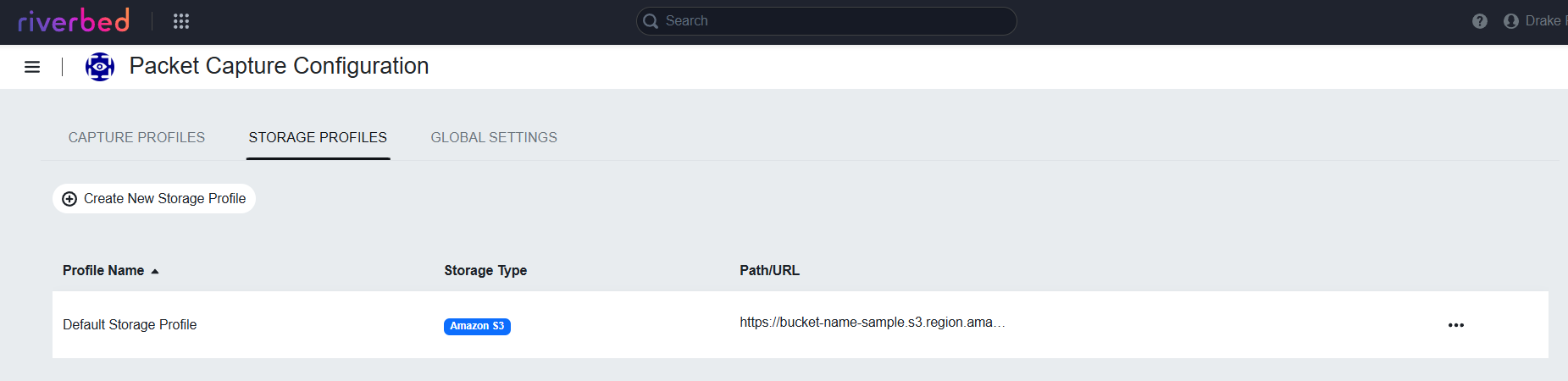
PCAP files are stored in customer managed repositories.
Click Create New Storage Profile to open the Storage Profile pop-up. This pop-up has five configurable settings:
-
Create a Profile Name.
-
Set the Storage Type. See Storage Profile Types for information about supported storage types and configuration settings.
You can edit and delete created profiles by clicking [...].
Global Settings
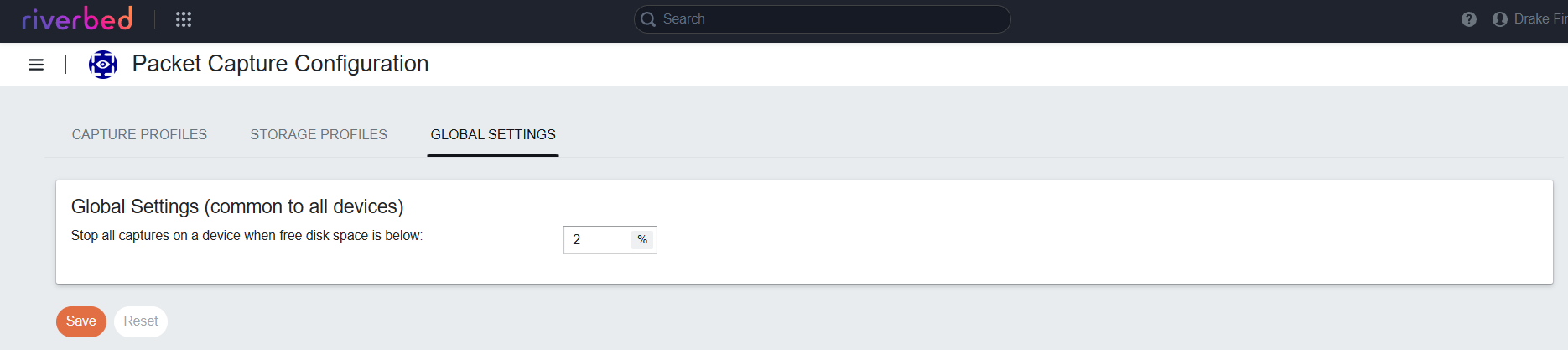
The global settings contain a single setting, the mandatory minimum percent of free disk space that should be maintained on the device at all times.
The module monitors disk space and if the percentage of free space falls below the setting, the Packet Capture Module will stop all captures. New capture attempts will fail until you free up disk space.
Harvest commands will evaluate available disk space against this percentage and will fail the harvest request if there is not enough disk space to hold the estimated size of the PCAP to be harvested.