Subflow Creation Example
This walkthrough builds a reusable subflow A reusable automation chunk that performs frequently used functions, such as opening a ticket in an external system, and can be used to implement integrations with third-party systems. that resolves an application An entity type representing software applications deployed in the customer environment that are monitored for performance and anomalies. name, then calls that subflow from an incident runbook An automated workflow that executes a series of steps or tasks in response to a triggered event, such as the detection of anomalous behavior generating an incident, a lifecycle event, or a manually executed runbook.. For concepts and general procedures, see Working with Subflows.
The Subflow Editor is a pared-down Runbook Editor. It does not include trigger A set of one or more indicators that have been correlated based on certain relationships, such as time, metric type, application affected, location, or network device. nodes, Impact Statement nodes, or visualization A runbook node category that shows data in a chart, graph, table, or note, providing visual representation of analysis results in runbook output. nodes. Every subflow begins with a Subflow Input node (added automatically) and ends with at least one Subflow Output node.
Scenario
Imagine an incident runbook that queries application data and shows the application name in a table. The middle of that flow (query and shape the application name) is worth reusing. This example defines that middle section as a subflow, then wires the subflow into a parent runbook.
Create the subflow
-
Navigate to the Subflows page:
-
Click Automation in the left menu.
-
Click Subflows.
-
-
Click New to open the Subflow Editor. Note the Subflow Input node on the canvas.
-
Click Variables in the toolbar to open the Variable Definition Editor. Create two Subflow scope String variables named
appNameInandappNameOut. Click Add Subflow Variable, choose String, add both variables, then click Save & Close. -
Select the Subflow Input node. Under Starting Entity, set the input data properties name to Application. Under Context Values Received From Caller, add
subflow.appNameIn. Under Context Values Sent Back To Caller, addsubflow.appNameOut. Click Save & Close. -
Add a Set Primitive Variable node after the Subflow Input node. Set the variable to
subflow.appNameOut. In the template, set the value from the application field on the node input, for example:Copy{
"subflow.appNameOut": "{{node_input.output.data[0].keys['application.name']}}"
}Click Save & Close.
-
Add a Decision Branch node with one conditioned output and one default output.
-
For the conditioned output, add a Variable condition that treats an empty
subflow.appNameInas a match (for example, regex^$). Add a default output for every other case. Click Save & Close. -
On the conditioned branch, add an Application data query node. In Filters, choose applications from the subflow input. Enable Collect Metrics and add Throughput, Traffic, and Packets. Click Save & Close.
-
On the default branch, add a Transform node. Keep Manual output data definition, set the output data properties to Application, and use a transform template that builds an application object from
subflow.appNameIn. Click Save & Close. -
After the Transform node, add another Application data query that filters by applications from the closest parent (the Transform node), with the same metrics as before. Click Save & Close.
-
Add a Subflow Output node at the end of each branch. Two outputs are valid when the branches are mutually exclusive.

-
Save the subflow.
Call the subflow from a runbook
-
Open the Runbooks page and click New to open the Runbook Editor.
-
Open the Variable Definition Editor and create a Runtime scope String variable named
appName. -
Add an Application trigger node.
-
From the Subflows category in the Node palette, drag the subflow you created onto the canvas after the trigger.
-
Select the subflow node. On the Input tab, set the incoming application name variable (for example to
x11). On the Output tab, mapappNameOuttoruntime.appName(or the runtime variable name you created). Click Save & Close. -
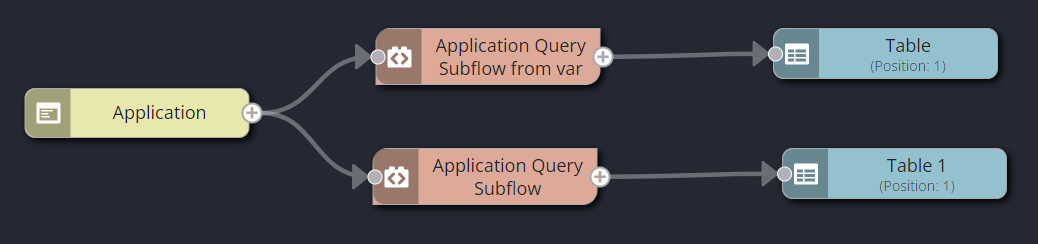
Optionally add a second instance of the same subflow from the trigger without setting the input variable, so you can compare explicit versus inherited context.
-
Add a Table visualization after each subflow instance.
-
Click Execute a Test Run, supply an application when prompted, and confirm the table output. When you set the input explicitly (for example to
x11), that value appears in the corresponding table.
For more use-case ideas, see Subflow Use Case Examples.