Faceted Search
Faceted search helps you narrow a large set of results by combining search text with filters based on the available data. Pages such as Explorer, Incidents, Audit Log, runbook outputs and schedules, and packet captures use faceted search. The controls and available filters vary by page.
A faceted search page can include the following areas:
-
Search bar: Narrows results by text.
-
Filter bar: Shows applied filters and, on supported pages, controls such as the result type and time range.
-
Filters: Lists filter categories, also called facets, and the available values in each category.
-
Results: Shows the items that match the search criteria and the number of matching items.
Search by text
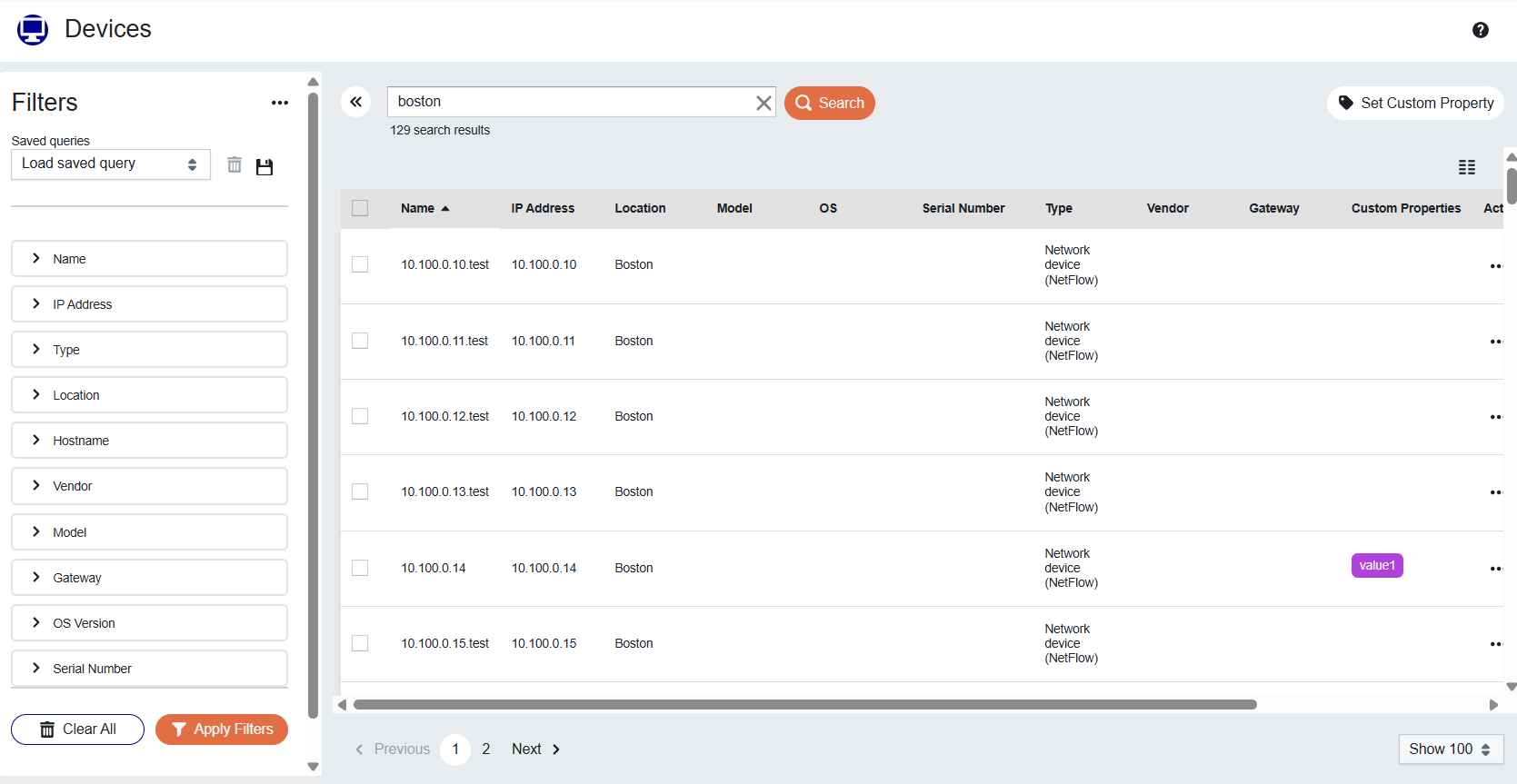
Enter text in the search bar, and click Search or press Enter. The search applies the text together with any selected filters and time range. The Devices page shows one example. The result count appears under the search box.
On pages that support these search operators, you can refine the text:
-
Exclude a term: Add a minus sign (
-) before the term. -
Search for an exact phrase: Enclose the phrase in double quotation marks.
Filter by facets
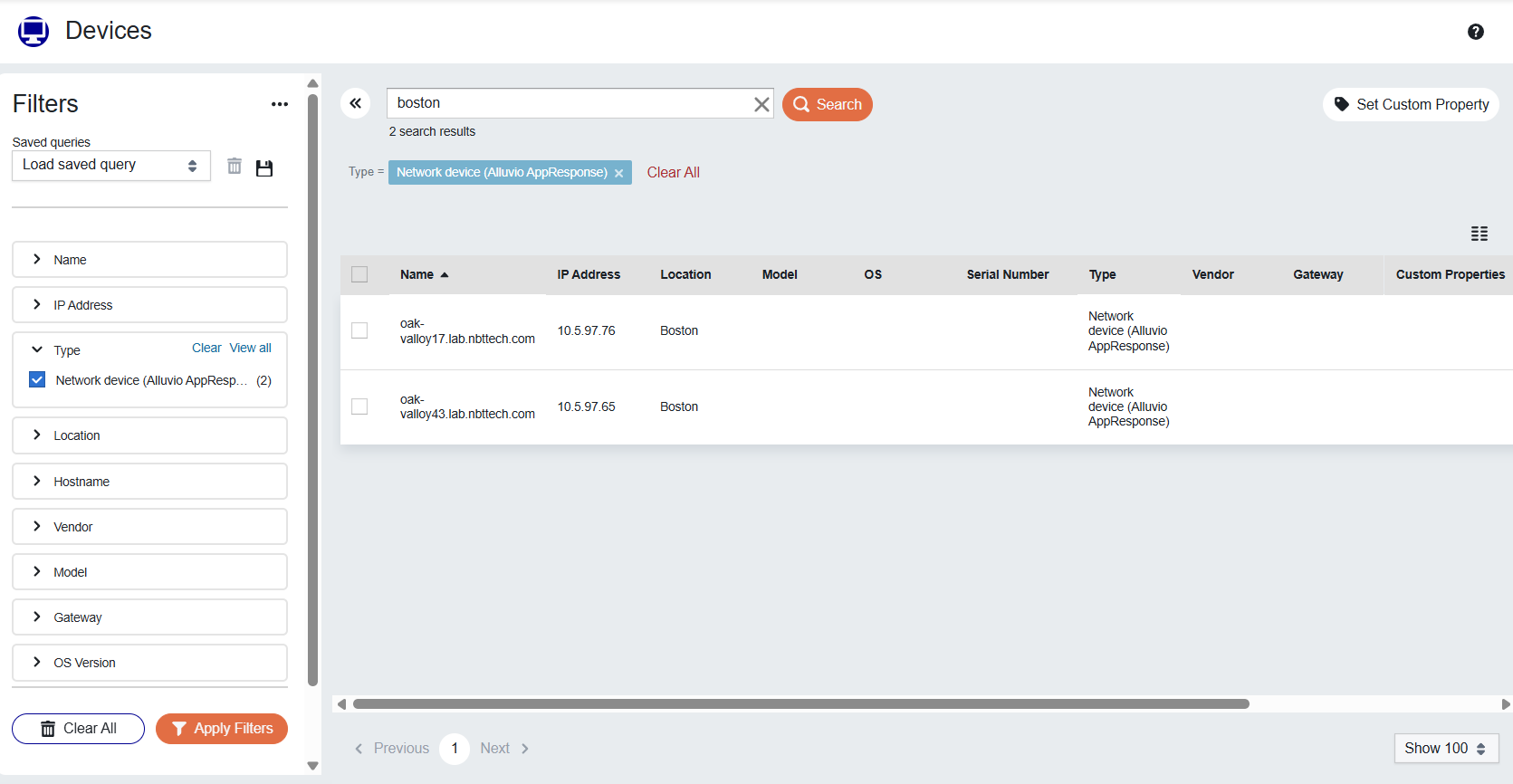
The Filters panel organizes values into categories that reflect the data available on the current page. Each value can show the number of matching results. Select one or more values, and click Apply Filters. On the Devices page, the selected value also appears as a tag above the results.
Faceted search combines selected values as follows:
-
Values in the same category: A result can match any selected value. For example, selecting Critical and High in the Priority category returns results with either priority.
-
Values in different categories: A result must match selections from every category. For example, selecting High in Priority and New in Status returns results that have both values.
Use Clear to remove selections from one category. Use Clear All to remove all selected facets.
Work with applied filters
The filter bar shows applied facets as tags. Remove a tag to stop using that value. The results update without requiring you to apply the remaining filters again.
If the page includes a time control, select a preset period or define a custom range. Faceted search applies the time range together with the search text and selected facets. Use Clear All in the filter bar to remove the applied facets and time range.
Explorer pages can also include a type menu. Select a type to search a different kind of result, such as incidents, devices, interfaces, applications, or locations. Available types depend on your product configuration and permissions.
Customize the Filters panel
Use the menu in the Filters panel to manage the facet list:
-
Expand all or Collapse all: Opens or closes every facet category.
-
Customize list: Opens the Facets Chooser.
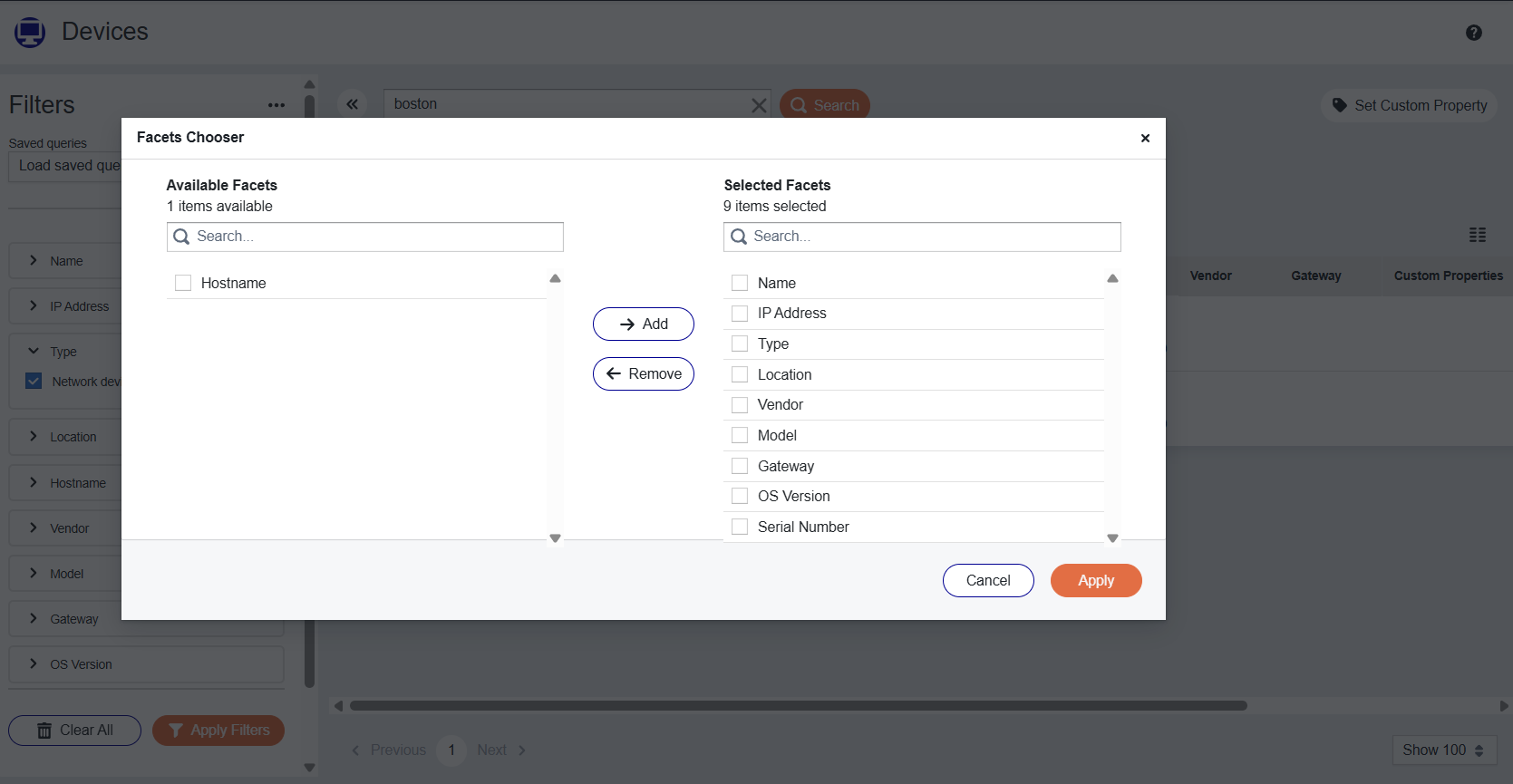
The Facets Chooser shows Available Facets and Selected Facets. Select one or more categories under Available Facets and click Add to show those categories in the Filters panel. Select one or more categories under Selected Facets and click Remove to hide them. The categories you choose are saved for the current page. The Devices page shows the chooser with device properties.
Click View all in a category to open Filter Section Settings. Use Search to find a value or change Limit to control how many values appear.
Save and reuse searches
If the Saved queries controls are available, you can save the current search text, filters, time range, sorting, and page size as a named query. Load a saved query to apply its criteria again, or delete a query that you no longer need.
Review search results
Use a sortable column heading to change the result order. Use the pagination controls to move between pages or change the number of results shown on each page. The available columns, row actions, and page sizes depend on the page.
For page-specific filters and behavior, see Incident Search and Audit Log Page.