Theater View and Topology Map
Theater View gives a geographic overview of your CloudIM and, when connected, Riverbed NetIM assets. Topology Map shows relationships when you drill into a site or asset. Together they help you inspect assets and explore how they connect.
Before you use these views, complete setup in Configuring CloudIM.
Navigate to Theater View:
-
Click Apps in the left menu.
-
Click Apps Library.
-
Open NetIM+.
-
On the CloudIM page, open Theater View.
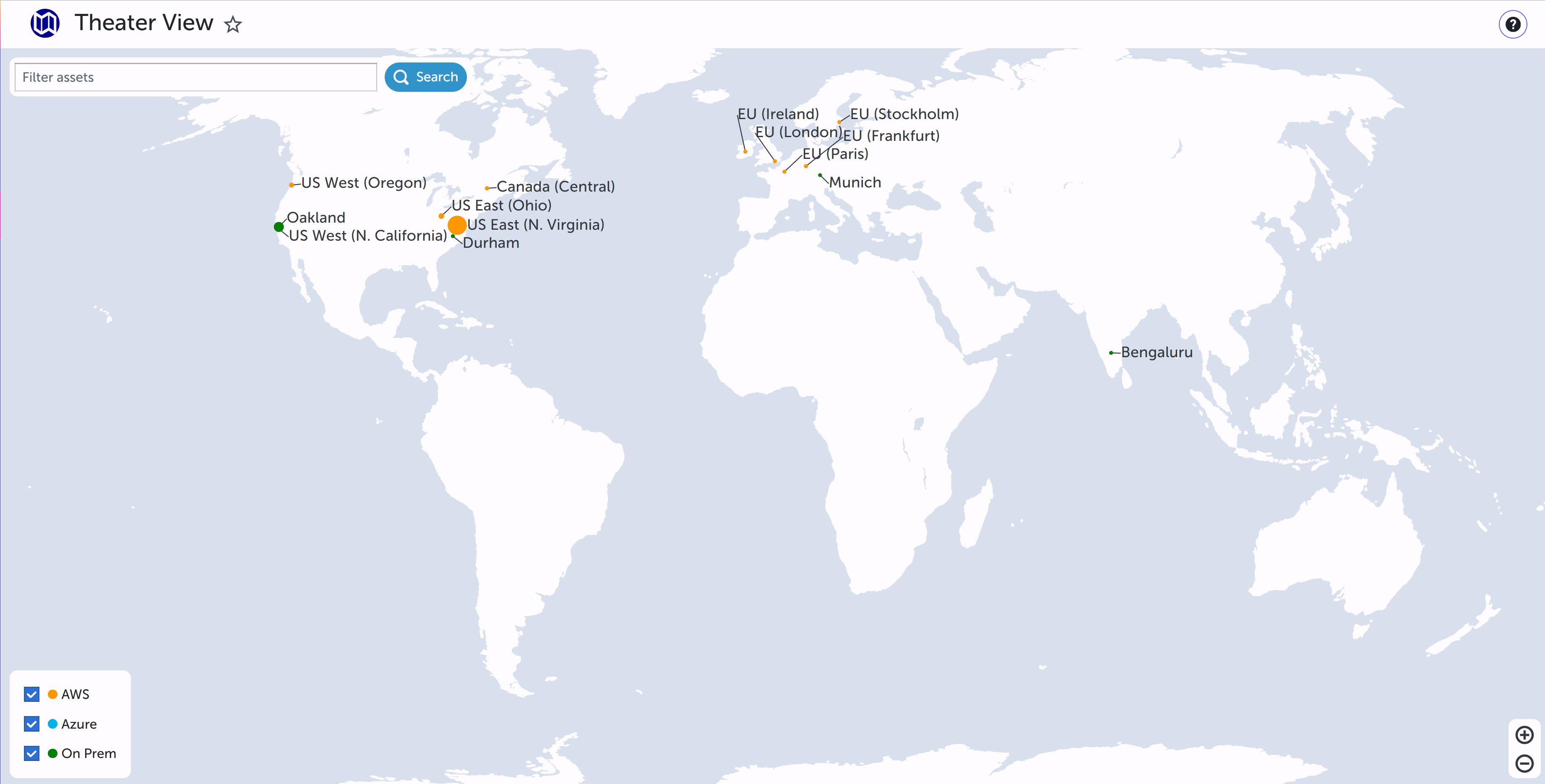
Theater View
Theater View organizes assets by geographic region. Indicator bubbles use the provider filter color so you can spot each provider quickly. Bubble size reflects asset density at that location. Use filters to focus on a data set, then drill into detailed views.
Search in Theater View
Search helps you focus on assets that matter:
-
Separate multiple search terms with spaces.
-
Combine search with the provider selector for more precise results. For example, when the Riverbed NetIM filter is selected, search runs only against Riverbed NetIM assets.
-
Click Search when your search string is complete.
Share a search query
You can share the current view by copying the URL from the browser address bar. The URL includes query parameters for the active filters and search text.
Example:
https://my.cloudim.system/visibility/cloudim?providerType=AWS&searchText=Munich
Map positioning and zoom
-
Reposition: Hold the right mouse button and drag, or use the trackpad equivalent, to move the map.
-
Zoom: Use the mouse scroll wheel, a two-finger trackpad gesture, or the zoom control in the lower-right corner of the UI
 User Interface. The visual components and controls that users interact with to access features and manage the system..
Topology Map
Left-click an asset in Theater View to open Topology Map. Use Topology Map to inspect asset relationships, network relationships, instance details, and provider-specific details. It is also useful for finding unused or forgotten resources.
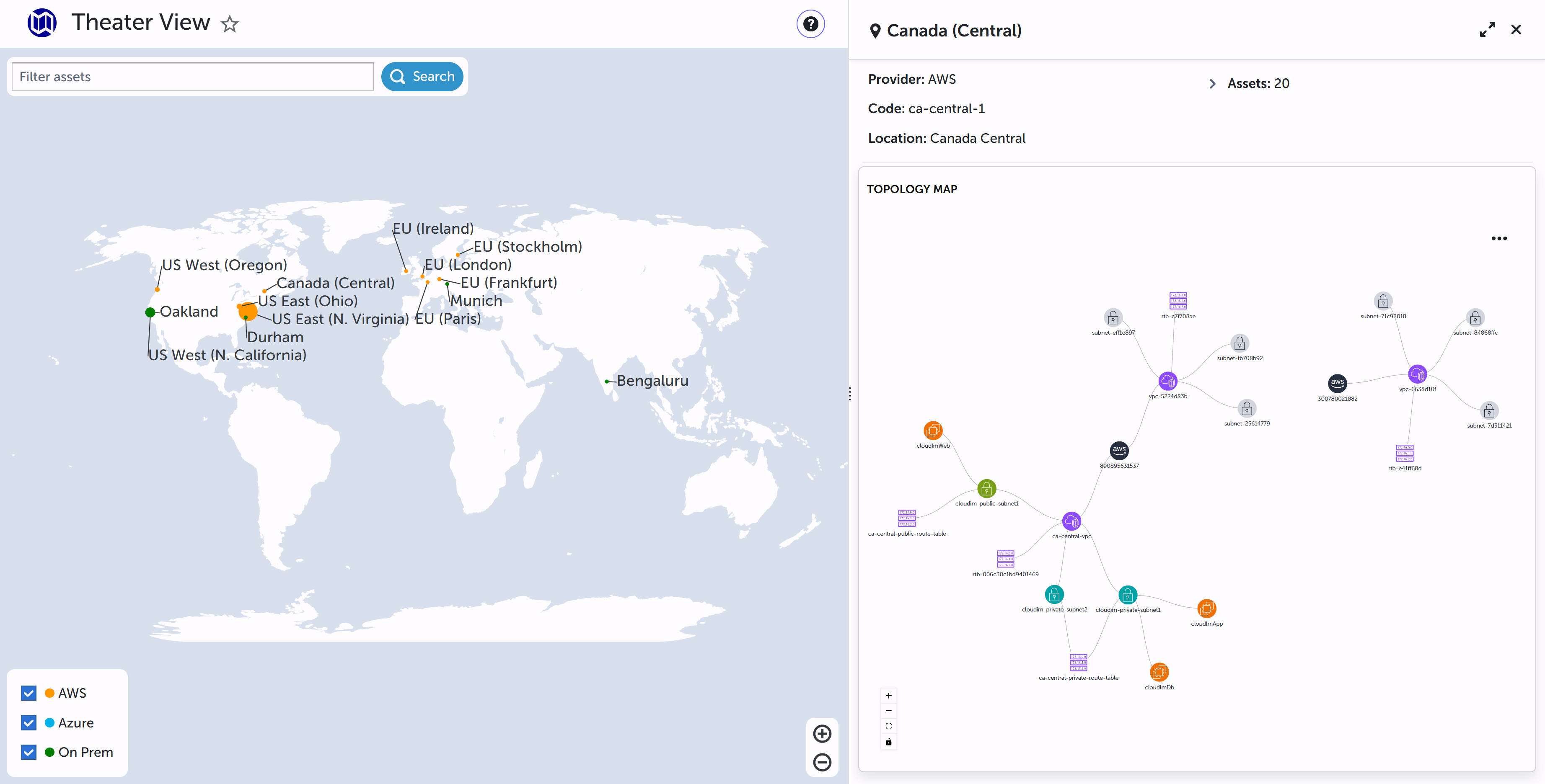
Side-by-side view
-
Drag the page selector left or right to show Theater View and Topology Map side by side.
-
Use the Topology Map toggle to switch between full-window and side-by-side layouts.
-
Use the Close icon to exit Topology Map.
-
Open the ellipsis menu to choose one of four preset map layouts.
Customize the Topology Map layout
Drag and drop nodes in Topology Map to rearrange them. Combine manual placement with the preset layouts to match how your teams read the map.
View asset properties
Right-click an asset on Topology Map to open its properties. The dialog includes an Attributes tab and, for supported compute nodes, a Metrics tab. CloudIM refreshes collected property data on a multi-hour cycle to limit load on your cloud accounts.
Riverbed NetIM attributes
For on-premises Riverbed NetIM devices, Attributes typically groups values such as:
-
Identity and system details: Device name and hostname, unique identifier, serial number, element type, operating system version, and whether the device is a gateway.
-
Addressing: IP address.
-
Hardware and vendor: Vendor and model.
-
Site and geographic location: Location name and identifier, plus city, state, country, and coordinates when available.
-
Custom properties: User-defined attributes configured in Riverbed NetIM.
Cloud attributes
For AWS and Azure assets, Attributes shows provider-specific resource details for the selected object. Provider tags can appear as key-value pairs when the cloud account supplies them. Exact fields vary by resource type.
Metrics
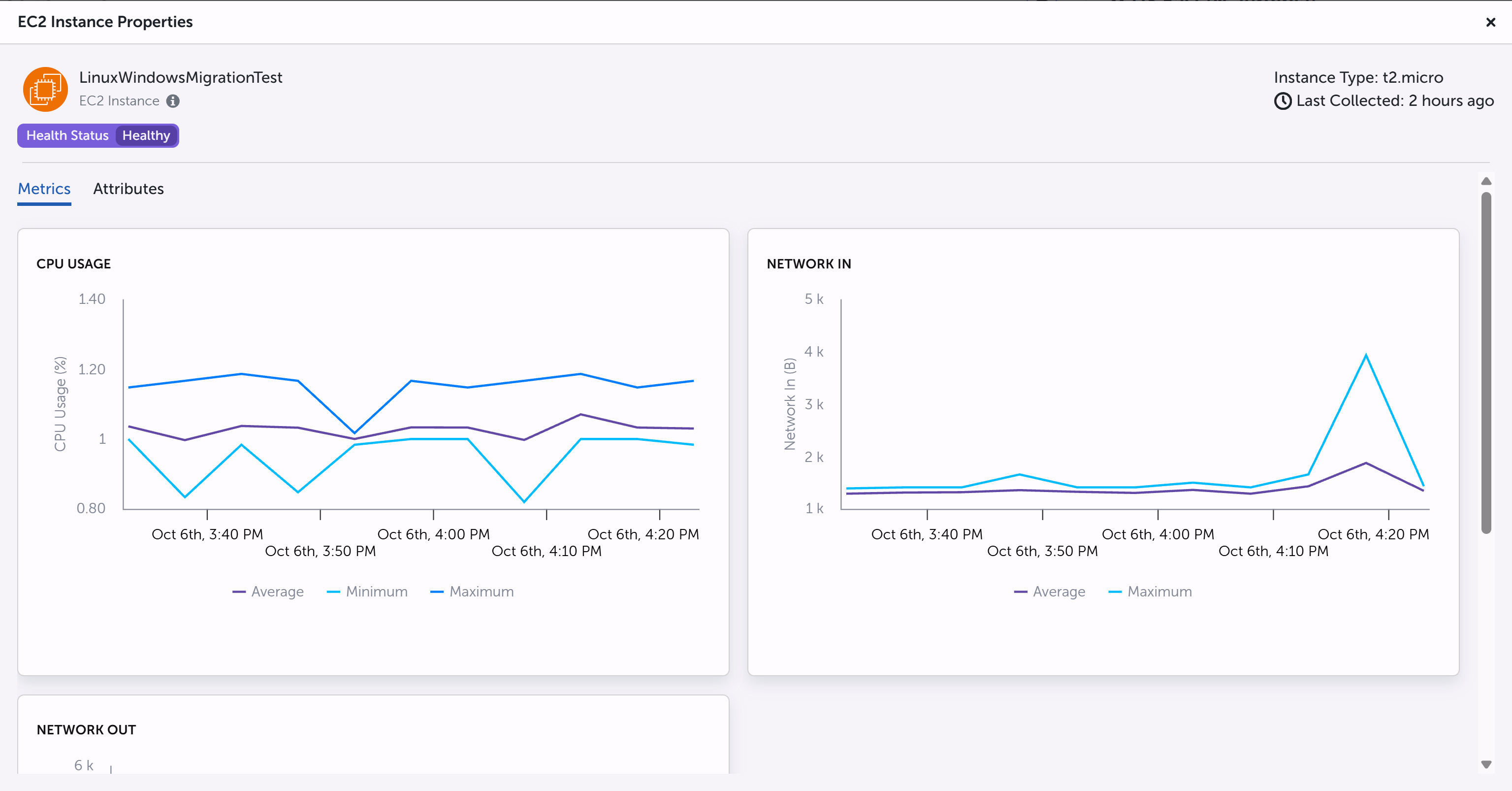
For compute nodes, CloudIM shows metrics for the last hour in addition to attributes:
-
CPU Usage
-
Network In
-
Network Out
Hover over a metric graph to see a five-minute breakdown of values.