Configuring subflow parameters
When you define input and output variables in the Subflow Input node, you can configure how those parameters appear and behave when the subflow is used in a runbook. Click Configure next to Context Values Received From Caller or Context Values Sent Back To Caller to open the configuration dialog. This topic describes the options in that dialog.
Input parameters
For each input variable you can set a description (shown to runbook authors when they configure the subflow) and validation or allowed values. The following screenshot shows the Configure button for input variables.
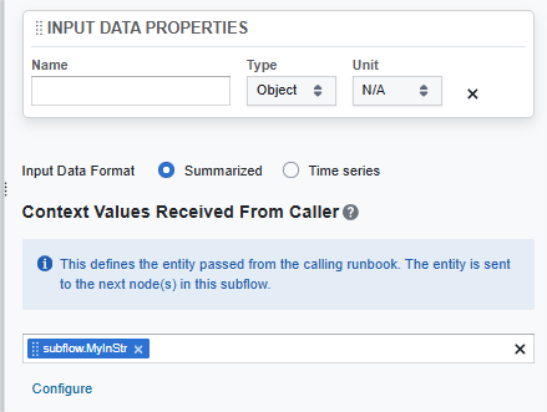
In the Configure Input Parameters dialog you can set the Description and Value options for each input parameter. The following screenshot shows the Description tab.
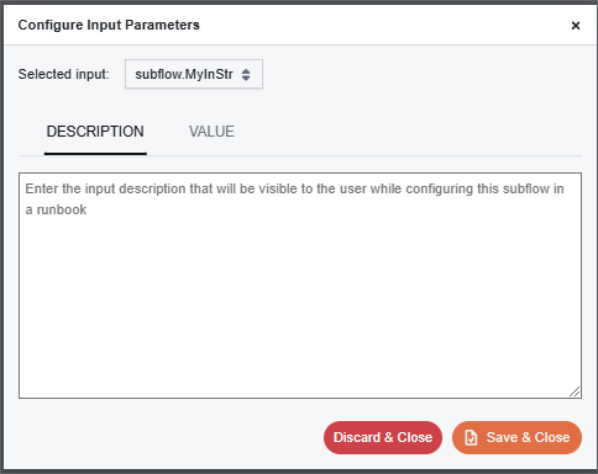
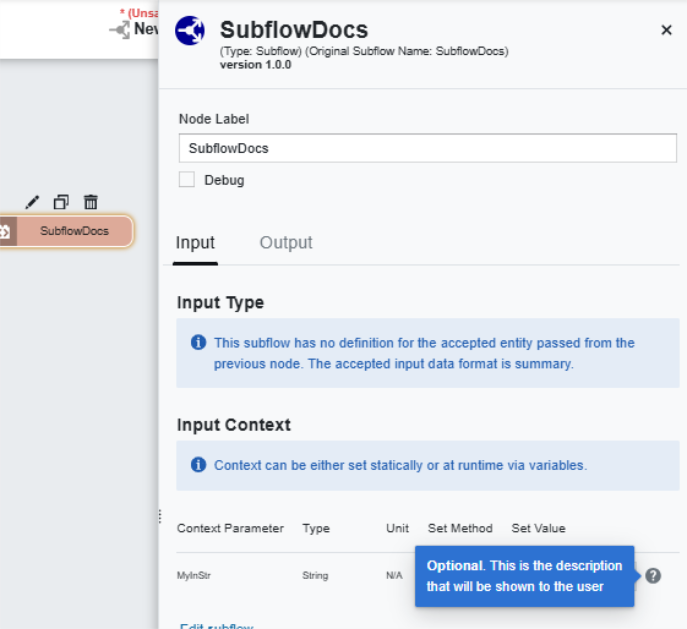
On the Description tab, specify the description that appears when the subflow is edited in a runbook. The following screenshot shows how that description is displayed in the subflow node editor when the subflow is used in a runbook.
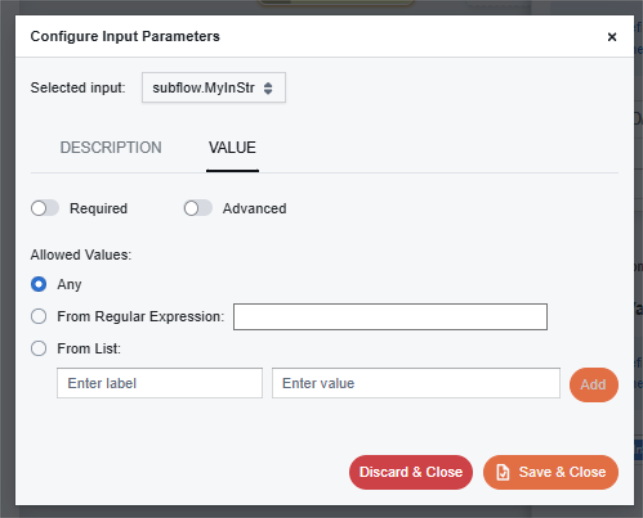
To configure the input variable Value, click the Value tab. For a string variable you will see:
For an integer variable you will see:
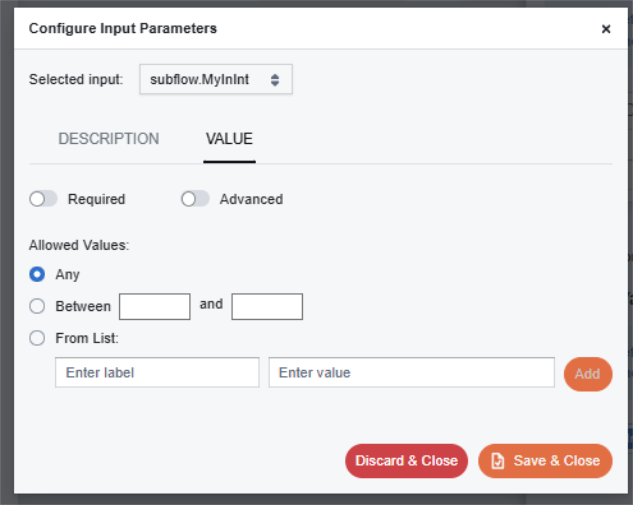
The following options can be specified on the Value tab:
-
Required: When selected, the subflow node editor will not close until this field has a value.
-
Advanced: When selected, the variable is hidden under the advanced section and is visible only when that section is expanded.
-
Allowed Values:
-
Any: No restrictions on the value.
-
From Regular Expression: Specify a regular expression to validate the value. The editor will not save until the value satisfies the expression. Applies to strings only.
-
Between: Specify a minimum and maximum; the value must fall within that range. Applies to integers and floats only.
-
From List: Specify a list of allowed values. When editing the subflow in a runbook, the user can only select from this list.
-
Output parameters
For each output variable you can set a description so that runbook authors understand what the variable contains. Click Configure next to Context Values Sent Back To Caller to open the dialog:
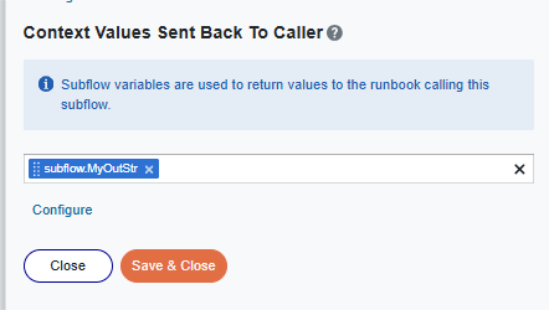
The dialog for output variables is similar to the one for input parameters. Because output values are set by the subflow, you can configure only the description. A configured description shows a question mark icon next to the output variable in the subflow node editor when the subflow is used in a runbook.