Getting Started with Core Assurance
Before your team can use Core Assurance, someone in your organization must accept the Core Assurance terms for your tenant. After your tenant opts in, anyone with the right access can open Core Assurance from Apps Library. Opt in and open Core Assurance as described below, then prepare the test endpoints that run your tests.
Opt in to Core Assurance
Core Assurance is offered as an early access release. Until your tenant opts in, the Core Assurance card in Apps Library shows Opt-in is required to use Core Assurance. Opting in applies to your whole tenant, so a customer user, not a Riverbed Technology employee, must accept the terms.
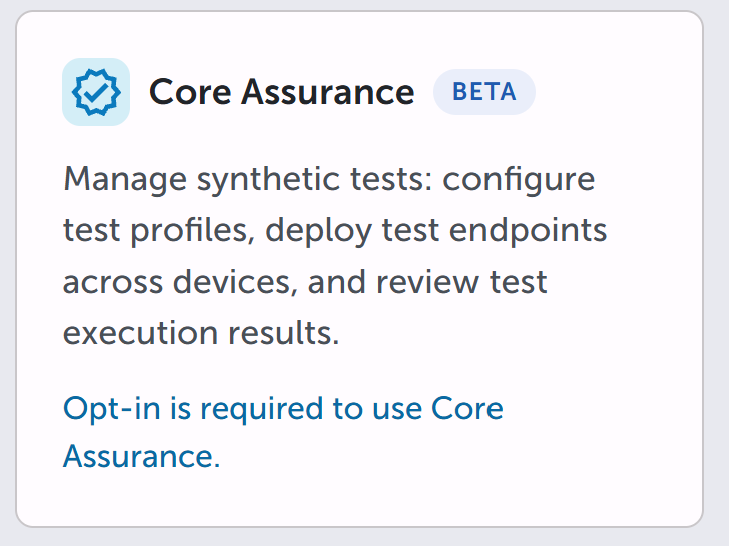
To opt in to Core Assurance:
-
Click Apps in the left menu.
-
Click Apps Library.
-
Click the Core Assurance card. The Core Assurance Beta page opens.

-
Under Use of Core Assurance Beta, read the terms. To read the full agreement, click Riverbed Previews Terms and Conditions.
-
Select the check box labeled Please check here to enable use of Core Assurance features.
-
Click Accept.
After your tenant opts in, the Core Assurance Beta page shows who accepted the terms and when, along with the terms they accepted. To return to the Core Assurance Beta page, click View opt-in terms on the Core Assurance card in Apps Library, or click Beta legal agreement at the bottom of the landing page.
Open Core Assurance
Sign in to Riverbed IQ with the method your organization uses, such as single sign-on. Then open Core Assurance.
Navigate to the Core Assurance landing page:
-
Click Apps in the left menu.
-
Click Apps Library.
-
Click the Core Assurance card.
The landing page opens and summarizes the health of your tests and endpoints. See Core Assurance Landing Page. To keep Core Assurance one click away, click the star on its card in Apps Library to bookmark Core Assurance. See Apps Library and Bookmarks.
Next steps
After you open Core Assurance, confirm that the devices you plan to test from are ready to run tests. See Prepare Test Endpoints.