Configure the Riverbed IQ Ops Assist connector for Microsoft Copilot and ServiceNow
When you connect Riverbed IQ Ops Assist in Microsoft Copilot or Power Platform, or configure the Riverbed IQ Ops Assist app in ServiceNow, you need parameters that Riverbed IQ Ops provides. This topic describes where to find them. For step-by-step configuration of the connector, use the following:
-
Microsoft Copilot or Power Platform: 101-Copilot-IT-SelfService
-
ServiceNow: 101-riverbed-iq-assist-for-servicenow
By following those docs, you can get the required information by copying and pasting from the Riverbed IQ Ops Assist Configuration page.
Where to find the connector parameters
Open the Riverbed IQ Ops Assist Configuration page. When IQ Ops Assist is enabled, the page shows two tabs:
-
Riverbed IQ Ops Assist for Copilot: Use this tab to obtain the parameters needed to configure the Riverbed IQ Ops Assist connector in Microsoft Copilot or Power Platform. The tab lists the values in a consistent order.
-
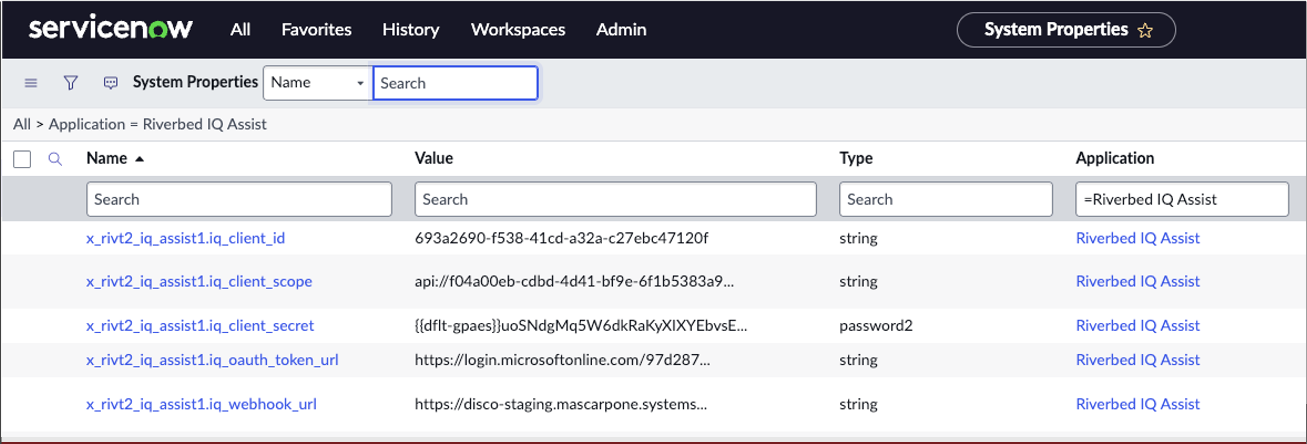
Riverbed IQ Ops for ServiceNow: Use this tab to obtain the values required to configure the Riverbed IQ Ops Assist app in your ServiceNow instance. These values include the Skills Webhook URL, Token URL, Scope, Client ID, and Client Secret.
Sensitive values on both tabs are partially masked in the UI User Interface. The visual components and controls that users interact with to access features and manage the system.. Use the Copy icon next to each value to copy the full value to the clipboard.
Parameters for Microsoft Copilot or Power Platform
The Riverbed IQ Ops Assist for Copilot tab shows the connector parameters under Custom connector (General Information and Security) and Connection. For the exact field names and values, refer to the Configuration page. Use the Copy icon next to each value to copy it. For Client ID and Client Secret, the tab links to the API Access page where you create or use an OAuth client.
ServiceNow Skills webhook URL
Copy the Skills Webhook URL from the Riverbed IQ Ops Assist for ServiceNow tab.